Showing posts with label labview. Show all posts

Thursday, January 13, 2022

Cognex In sight Industrial vision controlled by Labview using Native Mode communication

Hey, just want to document the way I'm using Labview to trigger a Cognex In sight camea.


 Basically, the Cognex In sight is a Telnet server.  The Labview program makes a TPC connection to the camera's IP address on port 21.  The username admin followed by carriage return and line feed is transmitted from Labview.  Then the password, which is blank, so just a carriage return and line feed are sent.  That initialization of the connection is made every time.  While the connection is maintained (open) any of the Native Mode commands can be sent.  See in sight explorer help for a full list of Native Mode commands.   The camera can be triggered by sending SE8\r\n   [note: the \r\n is the escape or slash character representation of Carriage return and line feed respectively.]  The camera will return a number and \r\n that encodes any error in reading or executing the command.  If you get a 1\r\n everything was OK.  After the inspection has completed you need to read out the result.  The native mode command to get a value is GV.  For example, GVc013\r\n will return the value in spreadsheet cell c013.  If you are using  easybuilder you need to create a format string in the "Communication" section.  Get the content of the format string using the command GVJob.Robot.FormatString\r\n

  The video shows how the Labview portion of the code works.  There is a .VI in the form of a functional global variable that encapsulates the communication as a state machine.  It handles the connection, login, command, and closing.  If you want the code let me know in the comments of the video.      


This link is a LabVIEW example.  It is written in LabVIEW 2018

Cognex Native Mode Communication Example https://drive.google.com/file/d/1G3T7LsJA6gZIcHpWeMIAGt_enxl1vMb5/view?usp=sharing


From In-sight explorer help (Links don't work, you need to have in sight explorer):

Basic Native Mode Commands

File & Job Commands

  • Load File: (LF) Loads the specified job from flash memory on the In-Sight vision system, making it the active job.
  • Store File: (TF) Saves the current job in flash memory on the vision system.
  • Read File: (RF) Reads a job from the flash memory on the vision system.
  • Write File: (WF) Sends a job to the flash memory on the vision system.
  • Delete File: (DF) Deletes the specified job or cell data file (.cxd) from flash memory on the vision system.
  • Get File: (GF) Returns the filename of the active job on the vision system.
  • Set Job: (SJ) Loads a job from one of the job slots in flash memory on the vision system, making it the active job.
  • Store Job: (TJ) Saves the current job into the specified slot in flash memory on the vision system.
  • Read Job: (RJ) Reads a job from the specified In-Sight job slot.
  • Write Job: (WJ) Sends a job to the specified job slot in flash memory on the vision system.
  • Delete Job: (DJ) Deletes the job from the specified slot in flash memory on the vision system.
  • Get Job: (GJ) Gets the currently loaded job's ID number.


Image Commands

  • Read BMP: (RB) Sends the current image, in ASCII hexadecimal format, from a vision system to an external device.
  • Read Image: (RI) Sends the current image, in ASCII hexadecimal format, from a vision system to an external device.
  • Write BMP: (WB) Sends image data from an external device to the vision system.
  • Write Image: (WI) Sends image data from an external device to the vision system.


Settings & Cell Value Commands

  • Get Value: (GV) Returns the value in a specified cell or symbolic tag.
  • Set Integer: (SI) Sets an integer value in a specified cell or symbolic tag.
  • Set Float: (SF) Sets a floating point value in a specified cell or symbolic tag.
  • Set Region: (SR) Sets the values of an EditRegion cell or symbolic tag.
  • Set String: (SS) Sets a string value in a specified cell or symbolic tag.
  • Get Info: (GI) Returns system information about the In-Sight vision system.
  • Read Settings: (RS) Reads the system settings data from a vision system.
  • Write Settings: (WS) Sends the system settings data from an external device to the vision system.
  • Store Settings: (TS) Stores the vision system settings to the proc.set file.
  • Set IP Address Lock: (SL) Prevents unauthorized changes to a vision system's IP address.
  • Get IP Address Lock: (GL) Returns the security status of the IP address on a vision system.


Execution & Online Commands

  • Set Online: (SO) Sets the vision system into Online or Offline mode.
  • Get Online: (GO) Returns the Online state of the vision system.
  • Set Event: (SE) Triggers a specified event.
  • Set Event and Wait: (SW) Triggers a specified event and waits until the command is completed to return a response.
  • Reset System: (RT) Resets the vision system (similar to physically power cycling the vision system).
  • Send Message: (SM) Sends a string to the spreadsheet over a Native Mode connection, and optionally, triggers a spreadsheet Event.

Sunday, February 2, 2020

Intel Realsense T265 Quaternion considerations

It has taken me a while to figure out how to use the camera pose data sent from the T265.
The Intel Realsense T265 pose a combination of a quaternion and translation vector.

Lets define some things:
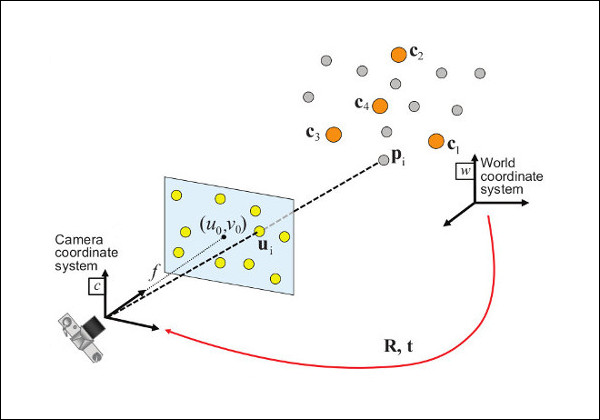
  Camera Pose: the location and orientation of the camera in space.  Relative to the world coordinates.
https://docs.opencv.org/master/dc/d2c/tutorial_real_time_pose.html

  Quaternion: A 4D representation of 3D rotation and/or orientation.  Useful because quaternion math is faster than matrix algebra and does not have gimbal lock error.  There are multiple ways of representing a quaternion.
different ways of writing a quaternion.  Image credit Wikepedia.
All of them are derived from rotating around a vector.  (i.e. rotating theta radians around vector v)
All quaternion represntations have a real number and 3 complex number.  The real number is the cosine (rotation angle/2).  The complex values are the sine (rotation angle /2) multiplied by the vector defining the axis of rotation in x,y, and z.  The three values scale complex values i, j, and k respectively.  - Look, it's a complicated thing to get you mind around, that's why it took me about a year to understand (well.. and I ain't that smart anyhow).  It's funny, I kind of sense (or even feel) an interpretation of a matrix, but not a quaternion. I think it's the 1/2 angle that gets me.  And double coverage is weird. You can get the same rotation by going in different directions ( think -180 and 180 degrees).  Make sure you check out item #6 below for help visualizing quaternions.

  Translation vector: a 3D value representing the direction and magnitude in X, Y, Z coordinates that an object (camera) has moved.

  Rotation matrix: A 3x3 set of numbers that represents where the unit vectors for +x, +y, and +z axes will be located in world coordinates, as long as they start at the origin 0,0,0 (and have length equal to 1).

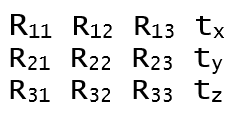
  R|t matrix: A 4 x 3 matrix made up of the Rotation matrix and the translation vector.  The camera pose can be represented as an R|t matrix.  The quaternion must be converted to the R matrix.
R|t matrix (used as camera pose matrix)
In practice,you want to turn this into a 4x4 homogeneous matrix where the
bottom row = 0 0 0 1
That allows square matrices to be multiplied together.  
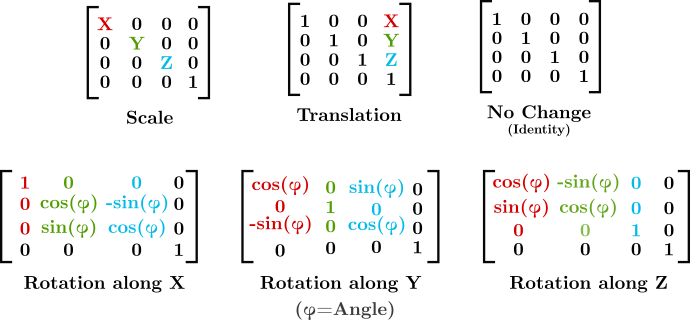
Some of the types of 4x4 homogeneous matrices that can be combined by matrix multiplication.
https://sinestesia.co/blog/tutorials/python-cube-matrices/

  Essential Matrix: Not to confuse things too much, but the R|t matrix can be defined as a 3 x 3 matrix called the essential matrix. It is not used in this blog post.  I just wanted to drop a note about it.  It is typically used to find the 3D point correspondence from two camera poses.  The essential matrix associates a 2D point in an image with a line that exists in both camera images.  However, to create the essential matrix the 3 x 3 Rotation matrix is multiplied by the Skew Symmetric form of the translation vector t.  You can retrieve R and t from the essential matrix.  Check the Wikipedia page for Essential matrix.  Look at the section "Determining R and t from E".

--

I started to use the Intel Realsense cameras while at the same time learning linear algebra.  Because I didn't know about the advantages that quaternions have when interpolating movement, I continued down the matrix path.   That meant the quaternion pose data needed to be converted to a rotation matrix.  Wikipedia has an article, but I found some code examples that allowed me to convert a quaternion to a rotation matrix, and a rotation matrix to a quaternion.  There were, of course, errros.  some were mine, and some were documentation.


The key shortcuts I needed are outlined here:

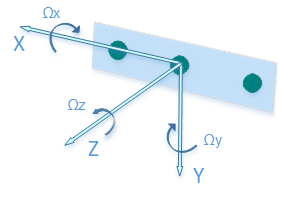
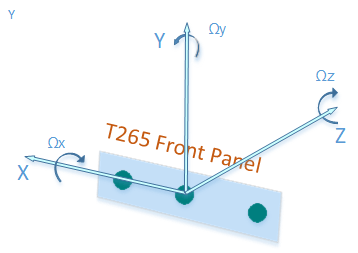
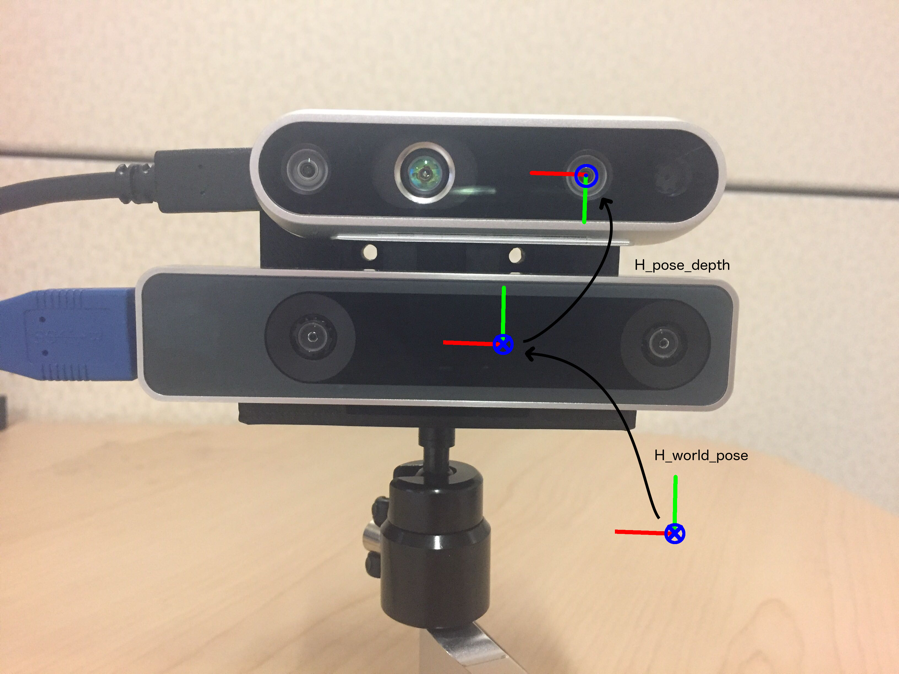
1) The T265 Pose axes are not in the same orientation as the D435.
D435 Pose axes

T265 pose axes


T265 Z and Y axis are rotated around x axis (in relation to the D435)
D435 above a T265.  Y axis revered, Z axis revered. X axis aligned.
You need an R|t matrix to get from T265 pose data to D435 pose.


2) The Quaternion value displayed is not in the order that most quaternion explanations use.  Most use the format where the real value is on the left, followed by the i, j, k complex valued to the right of the real.  The Realsense viewer places the real value on the right.
Realsense quaternions are displayed [x,y,z,w].  The display does not label the elements.
Most formulas would be formatted as [w,x,y,z], or  a+bi+cj+dk or qr, qx,qy,qz.  In all those cases the real is on the left, complex on right. 

3)  The T265 camera orients itself to gravity.  It decides where up is, then once it has a valid pose, it projects that x and z axes on the ground plane.  That's how it defines its world coordinates.


4) If you want to convert the quaternion to a Rotation matrix take a look at this site
https://www.euclideanspace.com/maths/geometry/rotations/conversions/quaternionToMatrix/index.htm  - But caution... There are errors in thier code.

or try Quaternion Derived rotation matrix on wikipedia, its just, um, Wikipedia, so you might need a masters degree to understand it.

Here is a link to my LabView code that will convert the quaternion to a rotation matrix
https://drive.google.com/drive/folders/1rJ3j662i-Naq2tXvlYXebeRyU57GD1RZ?usp=sharing
If you use it, you to take all the blame and give me all the credit.  And if you make something that is a financial success cut me in on the money.
oh boy, math.  that's fun.


5)  It is not easy to "see" how the quaternion converts to a rotation matrix.
  Here are some quaternion to rotation matrix examples


6) Have a look at the 3 blue one brown collaboration with eater.net to Visualize Quaternions
It is the most helpful thing on the internet regarding quaternions.